Yilda Draw
Complete installation and usage guide — every menu, panel, and tool in the application, with real screenshots. Desktop application for live raffles integrated with vMix.
Introduction
Yilda Draw is a desktop application developed by Yilda Studio to manage live raffles and promotions, integrated directly with vMix through its API. The raffle's graphic design (background, text fields, logo, sponsors) lives inside vMix as a Title (.gtzip); Yilda Draw connects to that Title, controls the spin, manages the participant list, and sends the result to the live program.
It's built for live TV and radio, churches, retail stores, supermarkets and shopping malls, corporate events, trade shows and expos, sporting events, and any business or production that wants to run on-screen raffles and promotions.
Step-by-step installation
The Windows installer guides the whole process. Below, every screen you'll see, in order.
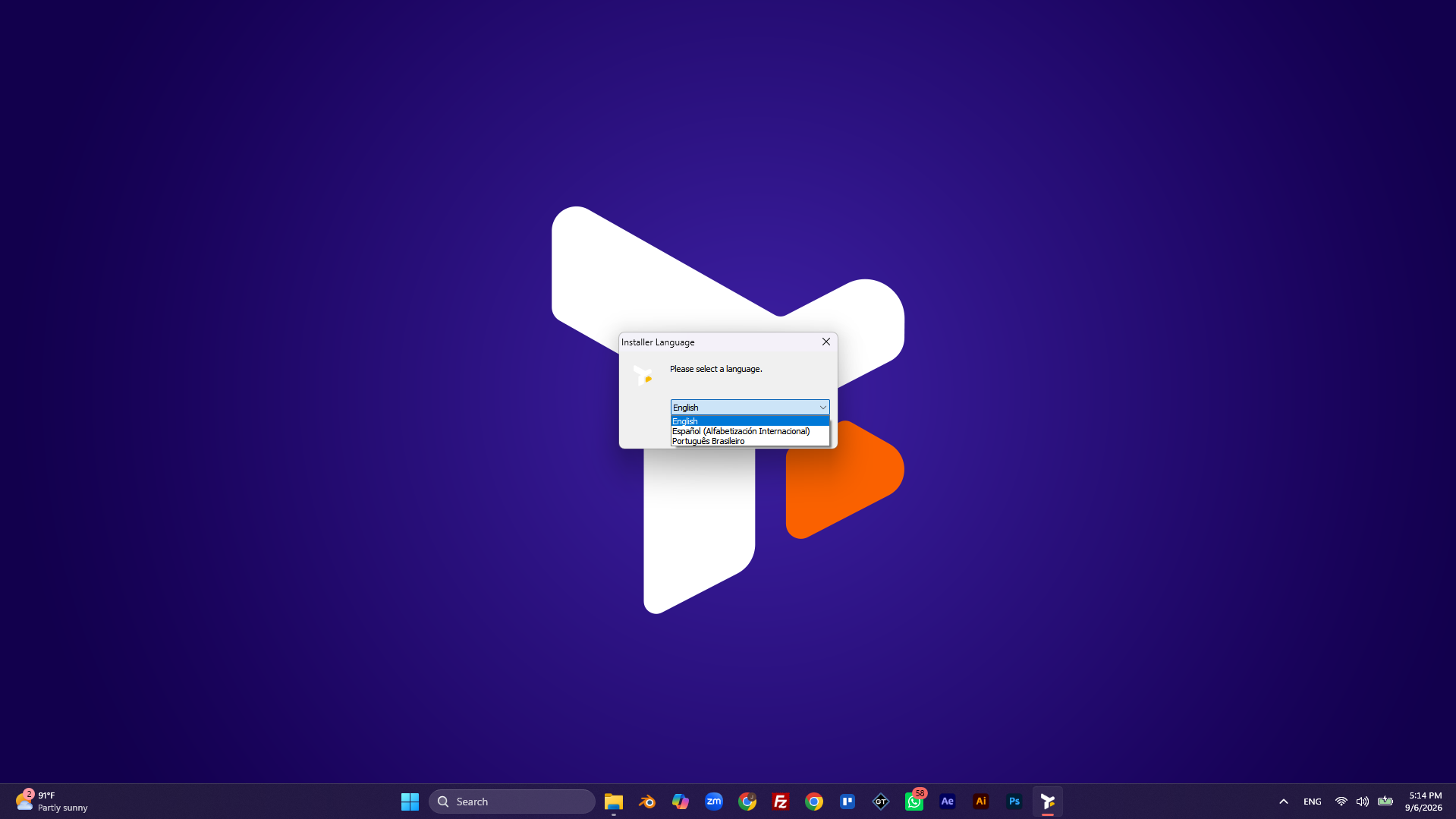
When you run the .exe, the first step is choosing the language the wizard is shown in: Español, English, or Português Brasileiro.
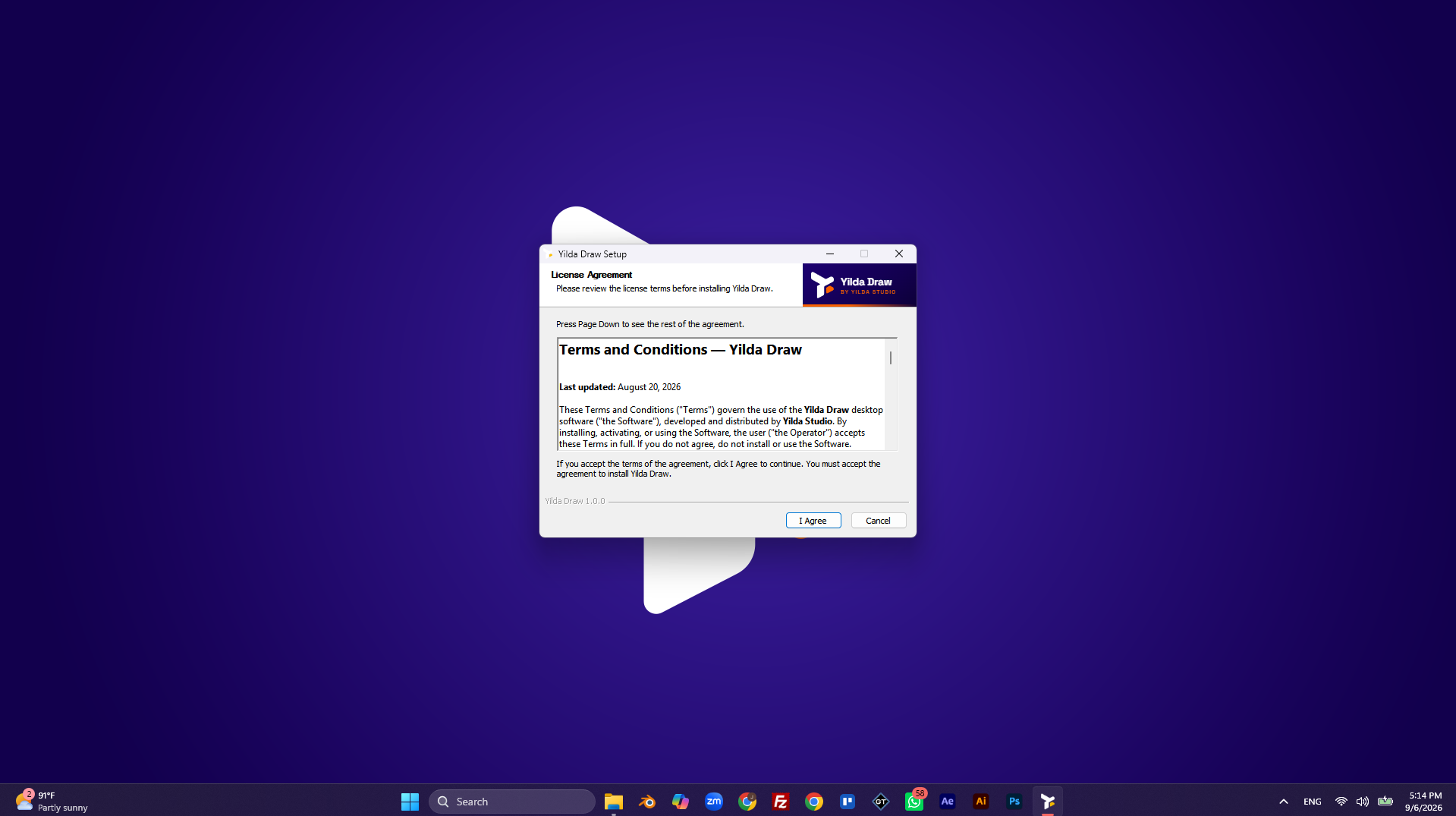
The license agreement is shown. Read it and press I Agree to continue — without accepting, the installer won't proceed.
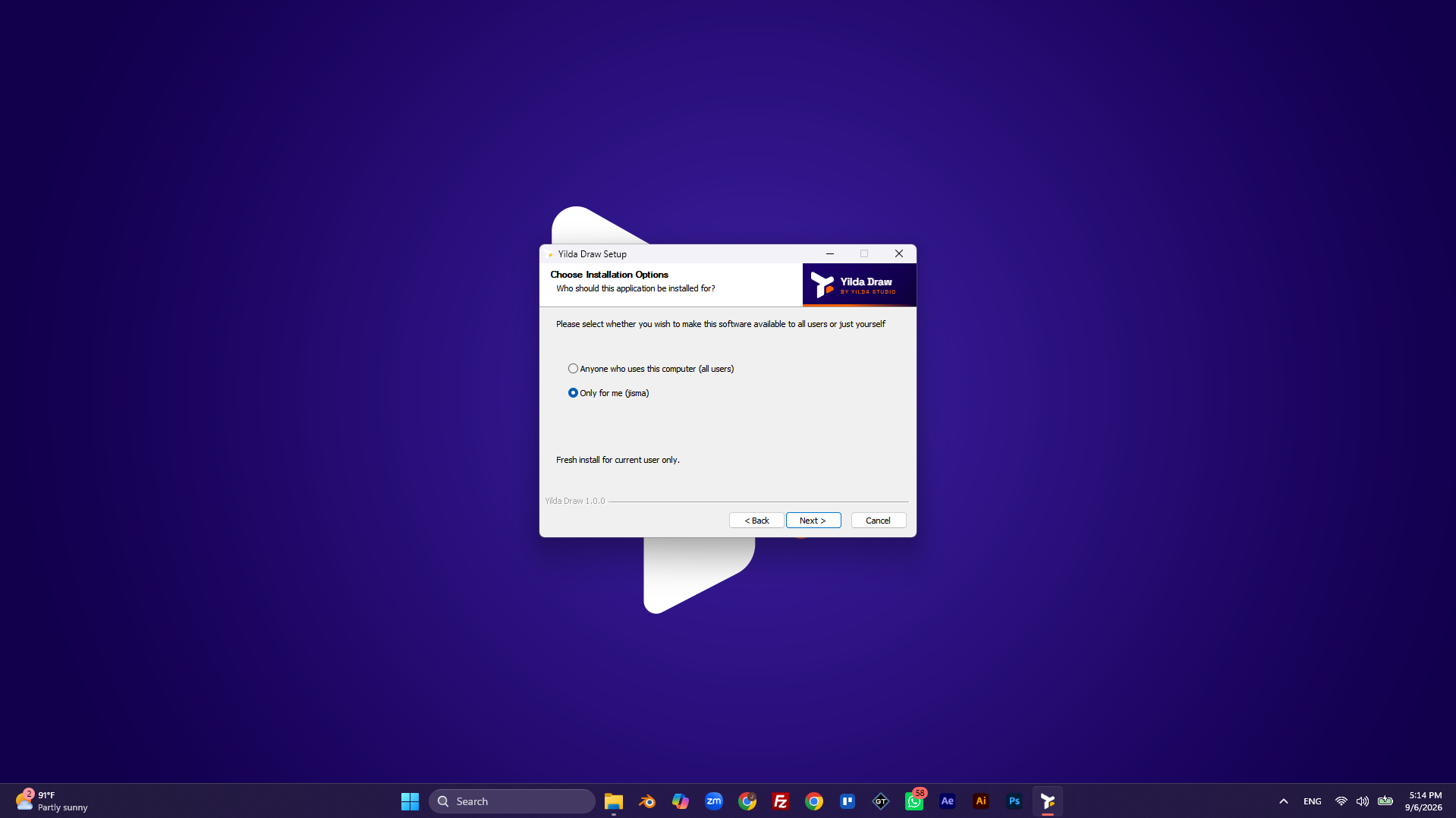
Anyone (all users) installs for the whole computer. Only for me installs only for the current user, without administrator rights.
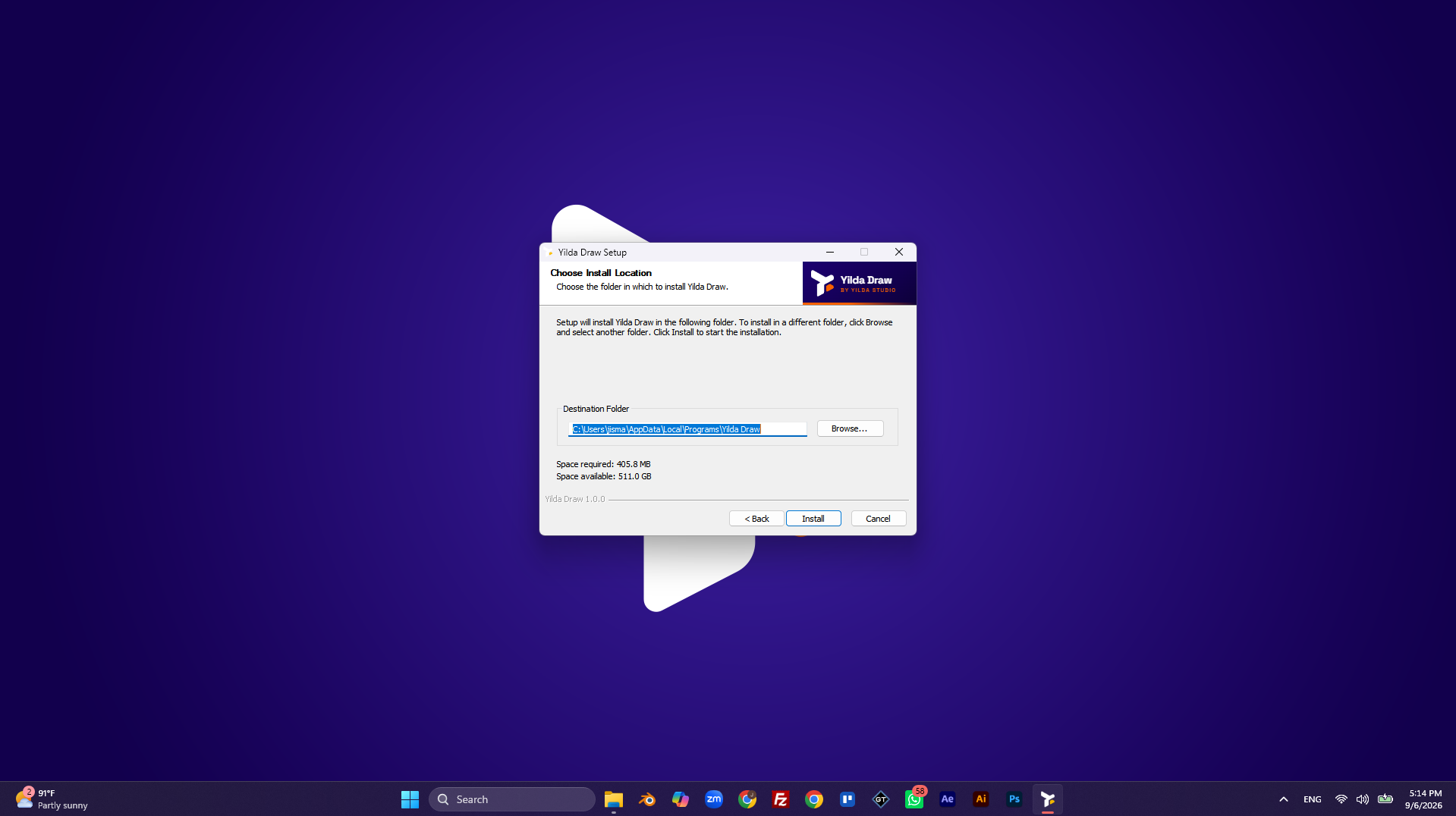
The installer suggests a default folder. To change it, use Browse.... Press Install to begin.
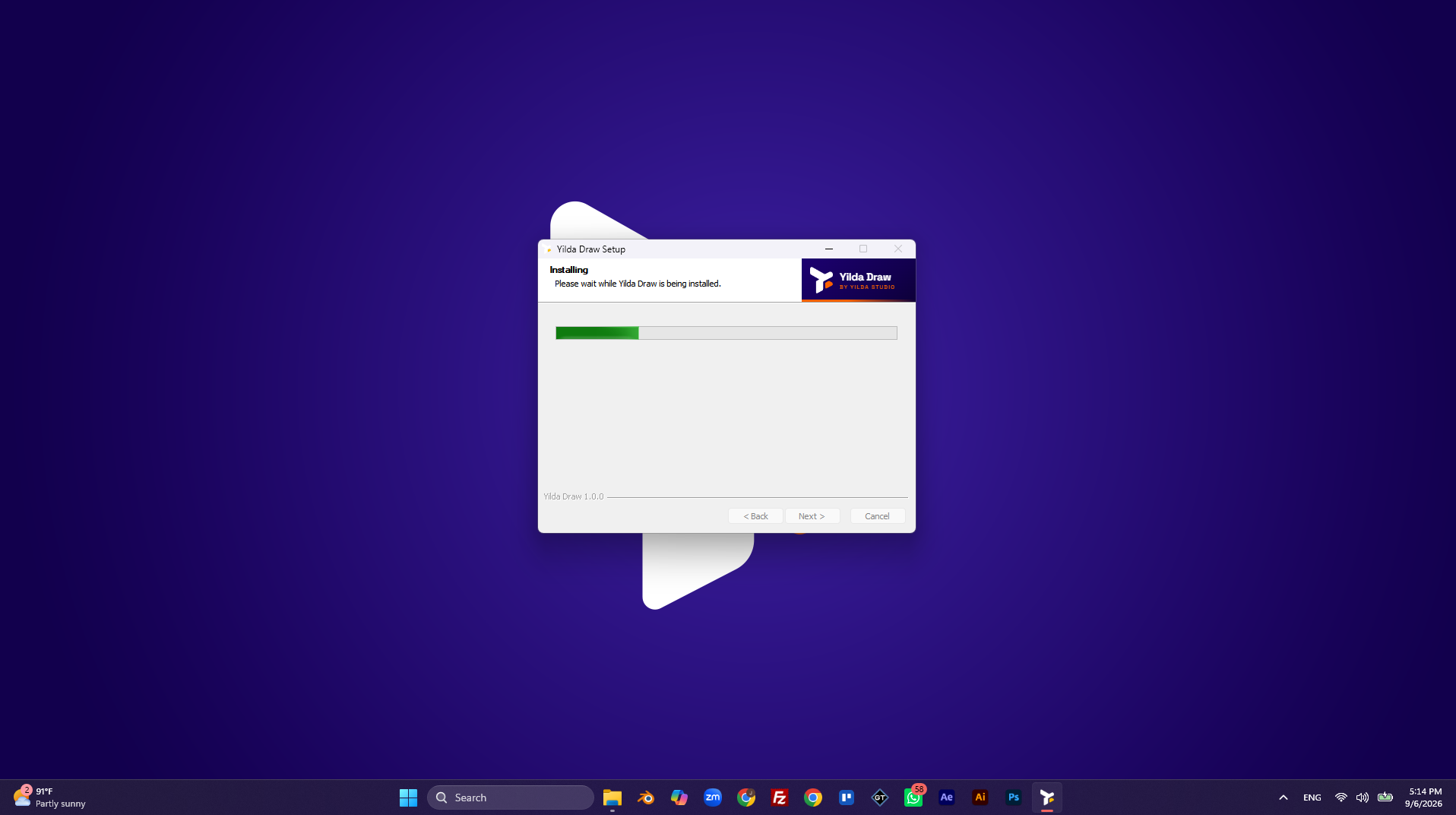
The progress bar advances on its own. No action is needed — just wait for it to finish.
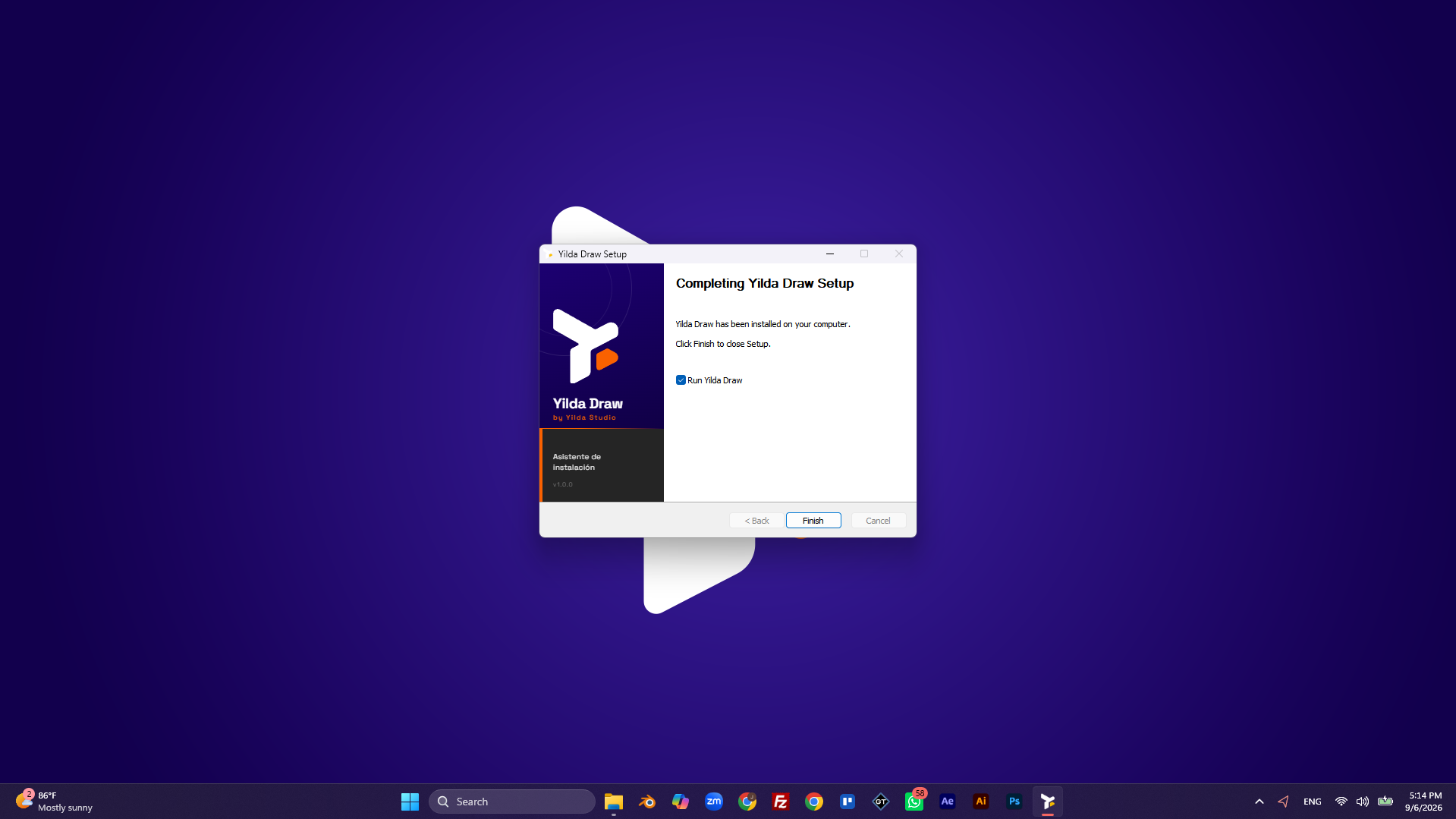
With the Run Yilda Draw checkbox checked, the application opens automatically when you press Finish.
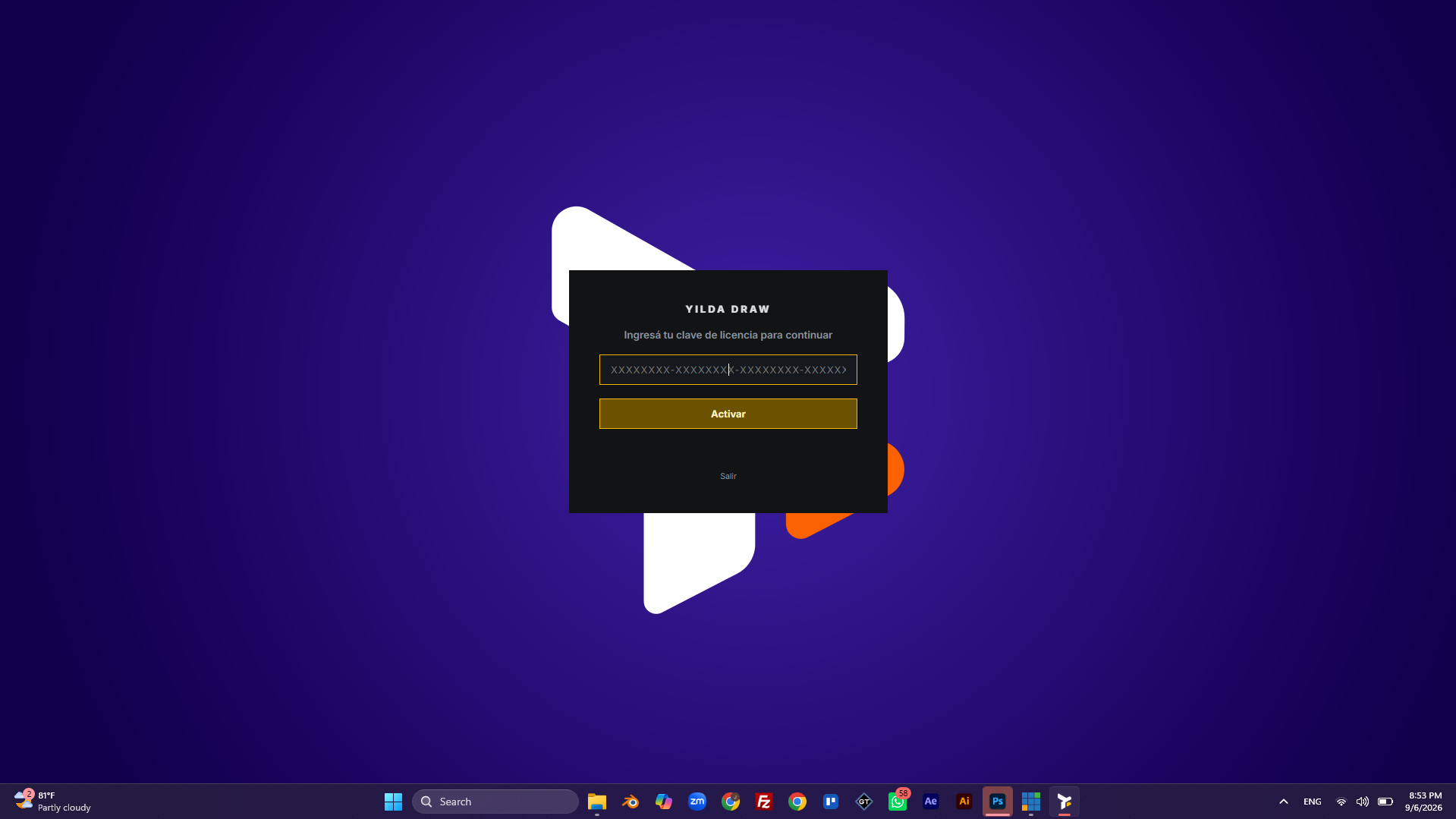
On first launch, Yilda Draw asks for the license key — a required step, the application won't continue without an activated license. It needs an internet connection the first time; after that, Yilda Draw stores the validation locally and only checks online periodically, allowing a few days of offline use.
Promotion profile
Before using the application, Yilda Draw asks you to create or select a promotion profile. This is one of the most important pieces of how the app works internally.
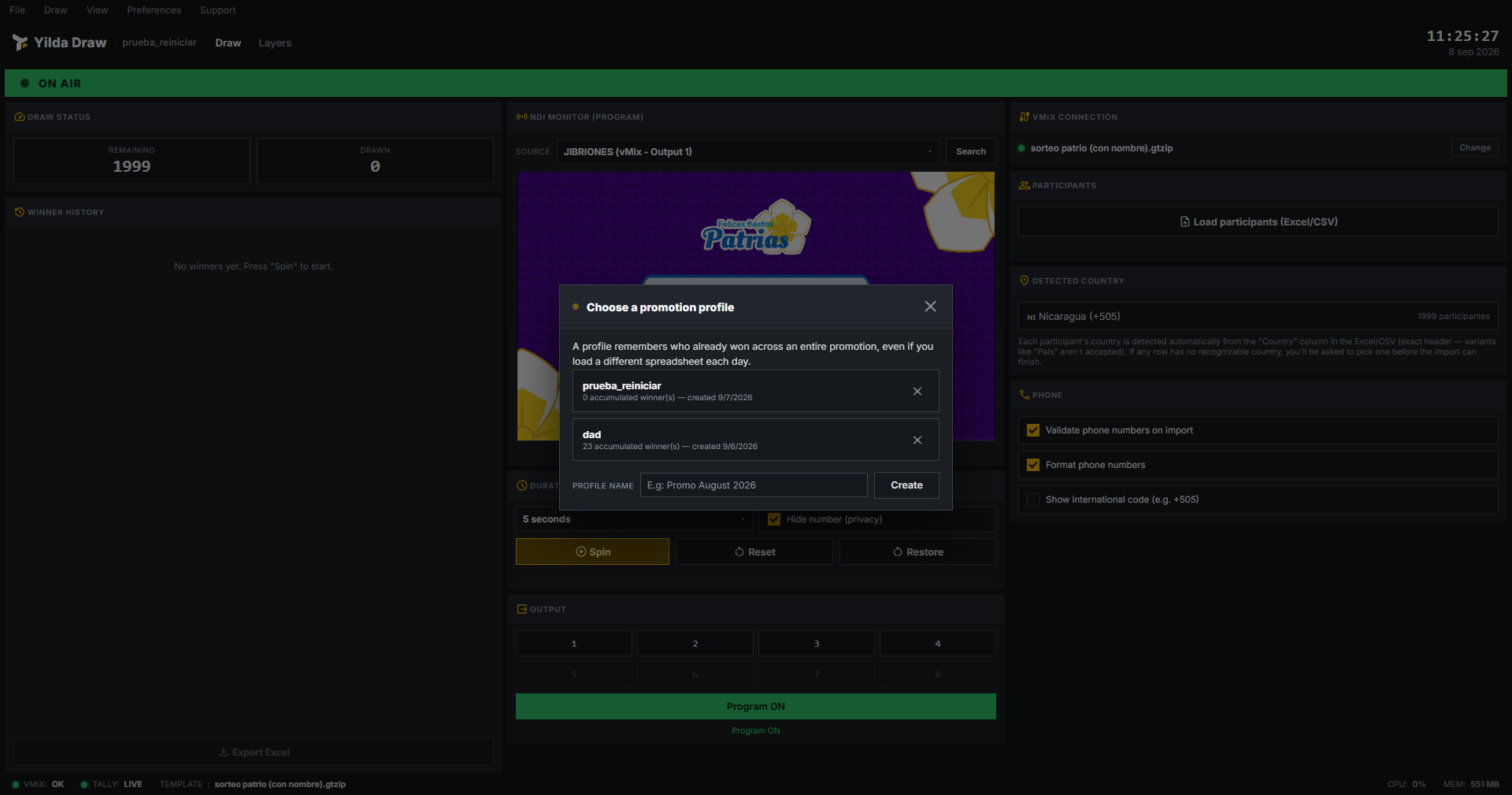
A profile remembers who has already won throughout an entire promotion, even if a different participant file is loaded each day. This prevents the same person from winning twice in the same campaign, even if the operator loads a new spreadsheet every morning.
- Create a new one: type a descriptive name and press Create.
- Use an existing one: click on the desired profile's row to activate it.
- Delete a profile: the ✕ button to the right of each row removes it permanently, along with its accumulated history. Use it carefully — there's no additional confirmation.
The active profile is always shown in the top-left corner of the main window, and can be changed from File → Change promotion profile...
Main interface tour
This is the screen where you'll spend most of your time running a raffle, divided into three columns.
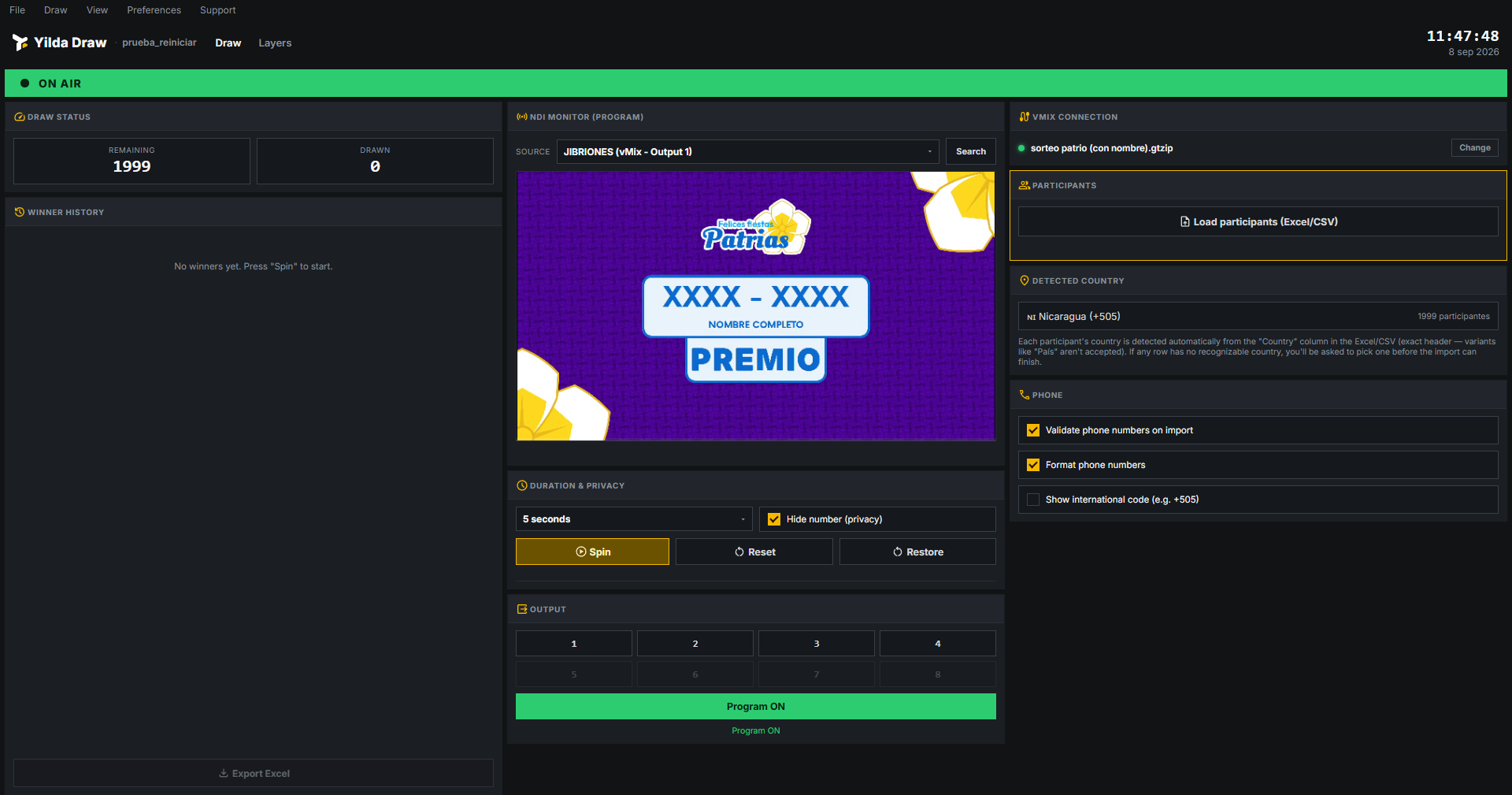
| Section | What it shows / what it's for |
|---|---|
| Draw Status | Participants remaining and already drawn in the current session. |
| Winner History | Winner history grouped by date. |
| NDI Monitor | Real live preview of what vMix is broadcasting. |
| Duration & Privacy | Spin duration and hiding the number's last digits. |
| Output | Overlay channel (1–8) and Program button. |
| vMix Connection | Connection status and selected Title. |
| Participants | File loading and summary of the last import. |
| Detected Country | Automatically detected country and total participants. |
| Phone | Phone number validation and formatting. |
At the top, the bar has the app's five menus, the active profile, and the Draw / Layers tabs. Below, a colored band shows whether the Title is ON AIR or not.
File menu
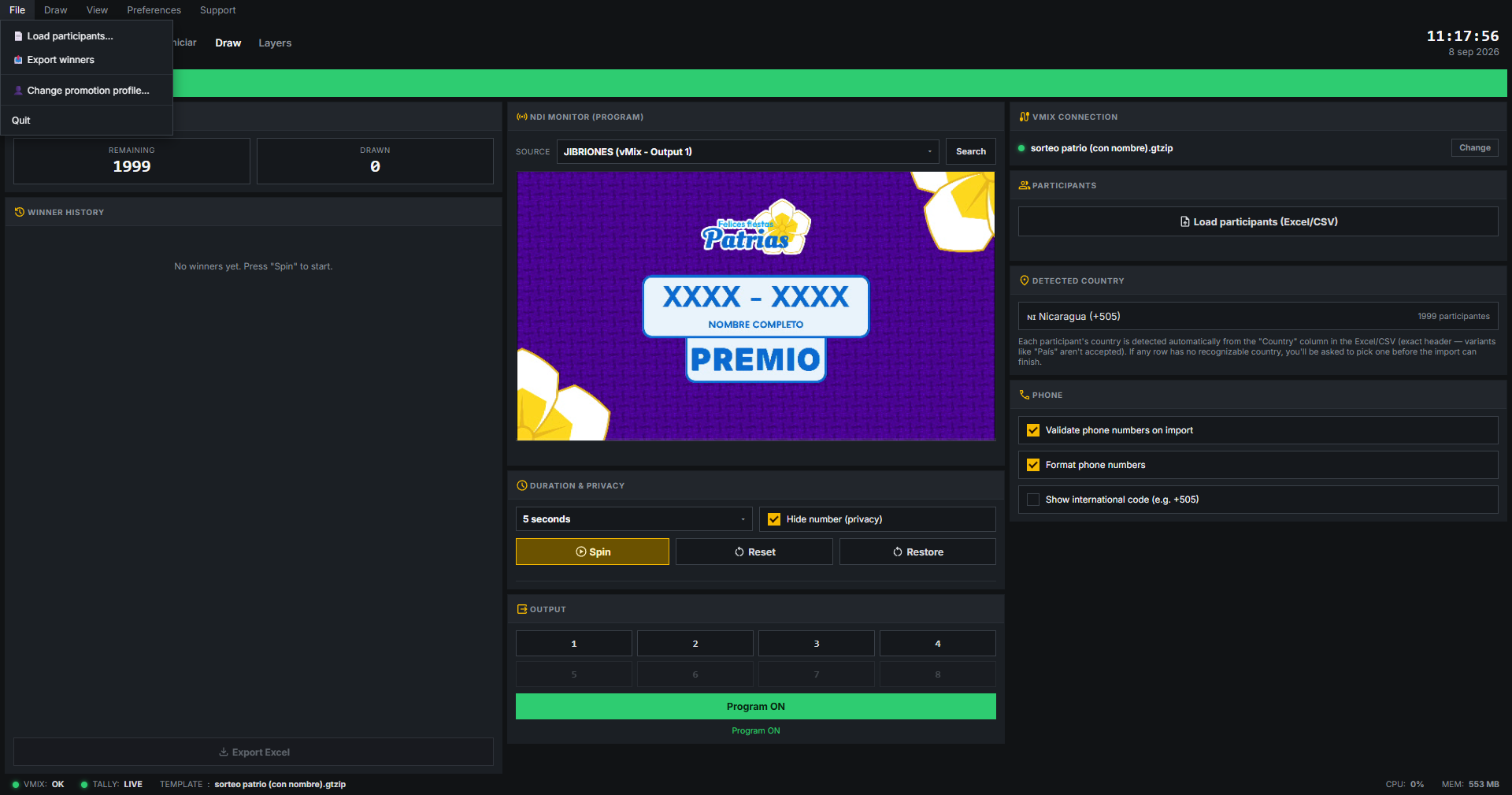
Load participants...
Direct shortcut to the "Load participants (Excel/CSV)" button — see Loading participants.
Export winners
Exports the active profile's accumulated winner history to an Excel file.
Change promotion profile...
Opens the profile selector described in Promotion profile.
Quit
Closes Yilda Draw, automatically saving the session state so it can be resumed next time.
Draw menu
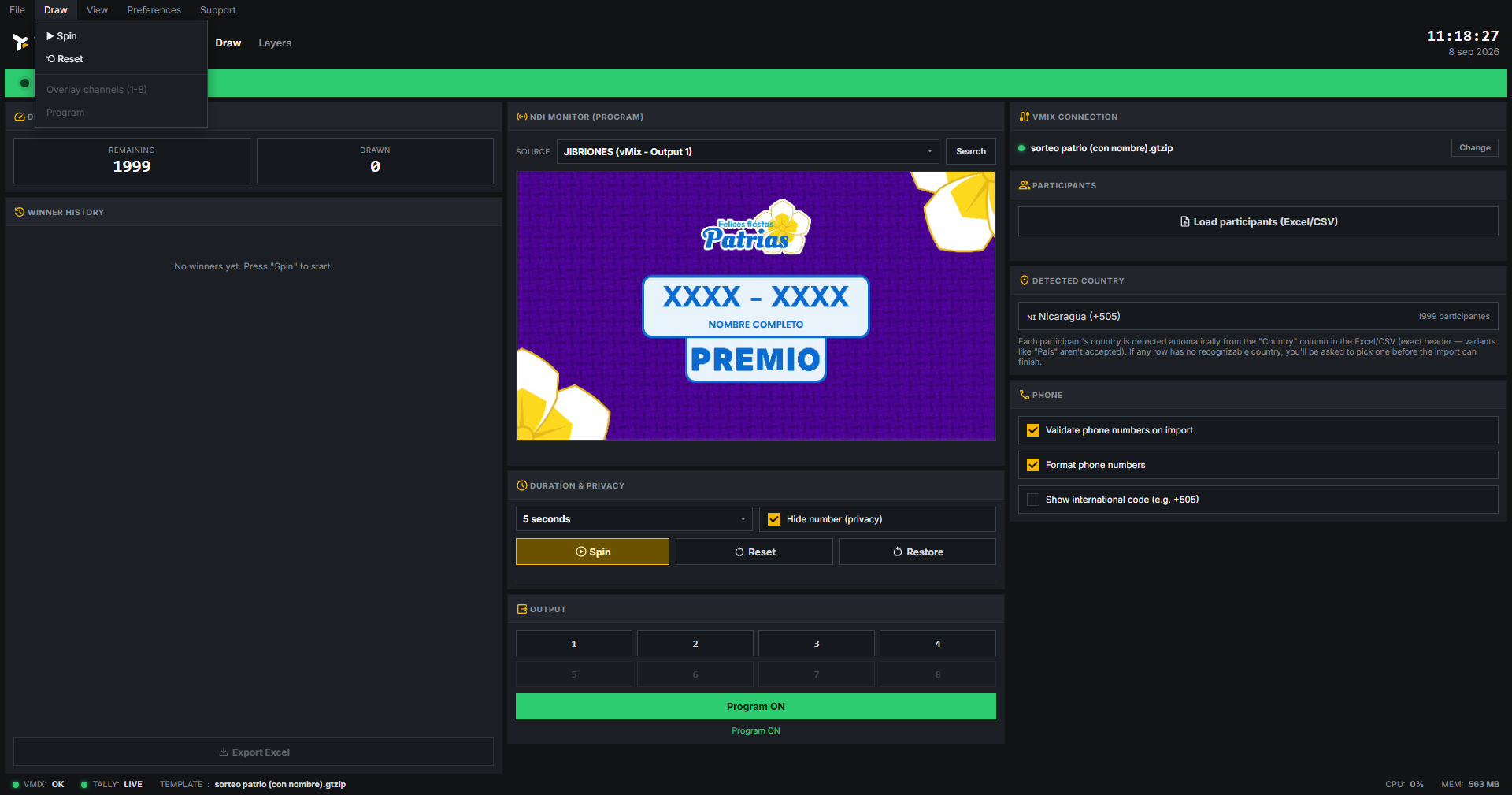
Brings together the same actions available as buttons on the main screen: Spin, Reset (see Reset vs. Restore), and the eight overlay channels plus the Program button.
View menu
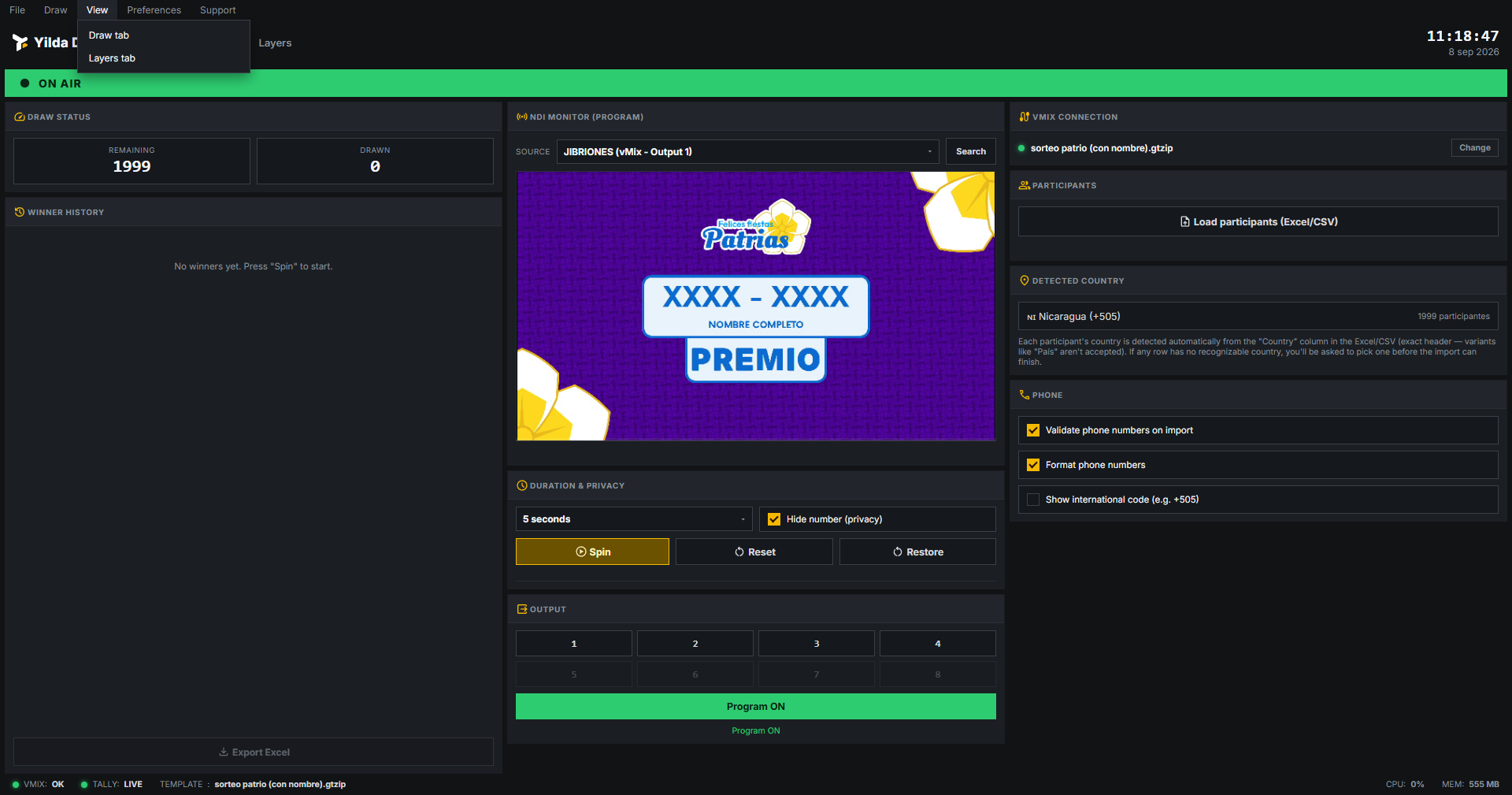
Toggles between the Draw tab and Layers tab, same as clicking those tabs directly next to the logo.
Preferences menu
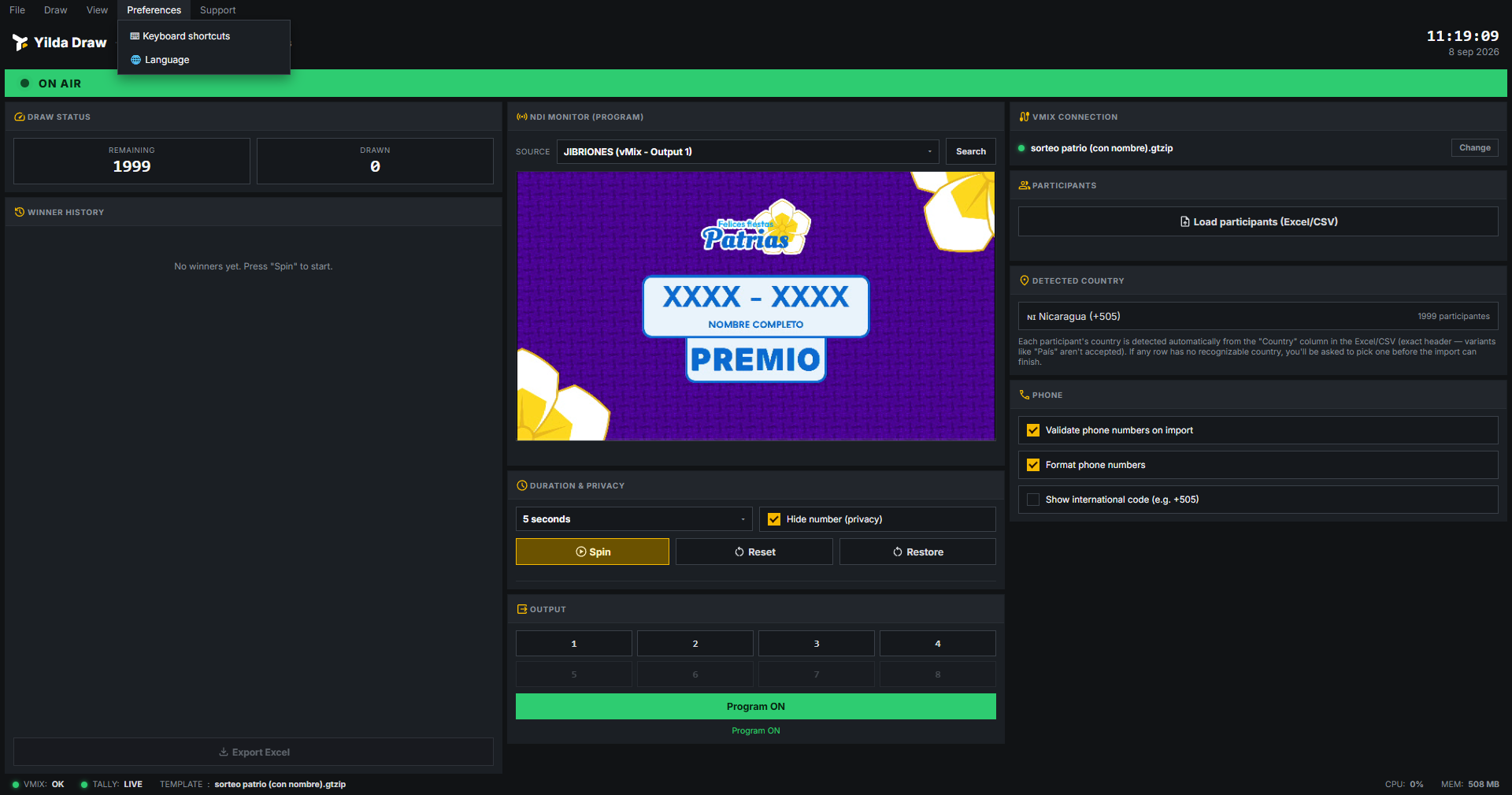
Keyboard shortcuts
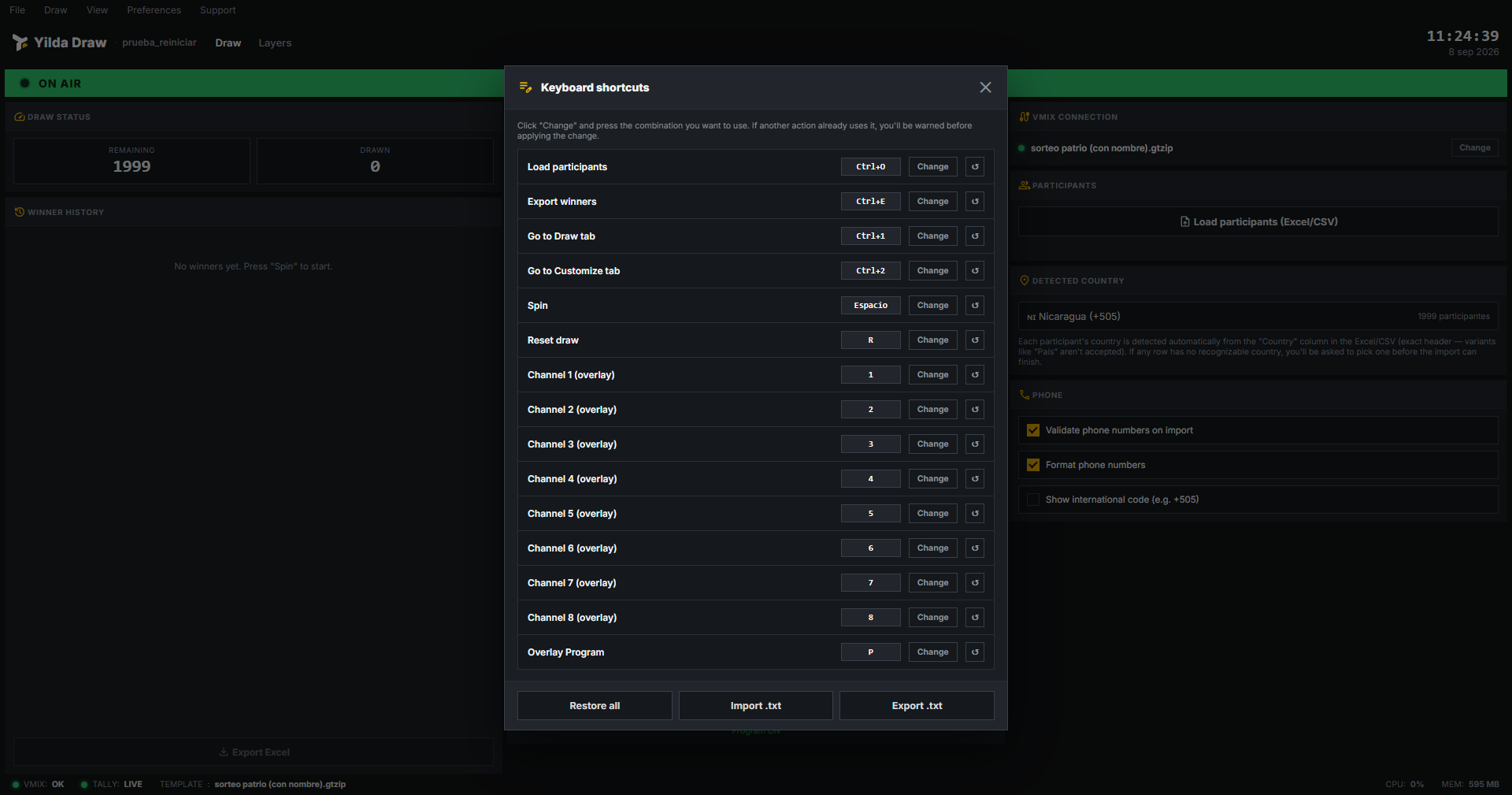
- Change: press the button, then the combination you want to use.
- ↺: returns that specific row to its factory shortcut.
- Restore all: returns all 15 combinations to their factory values.
- Import / Export .txt: saves or loads the shortcut configuration, useful for replicating it across multiple PCs.
Language
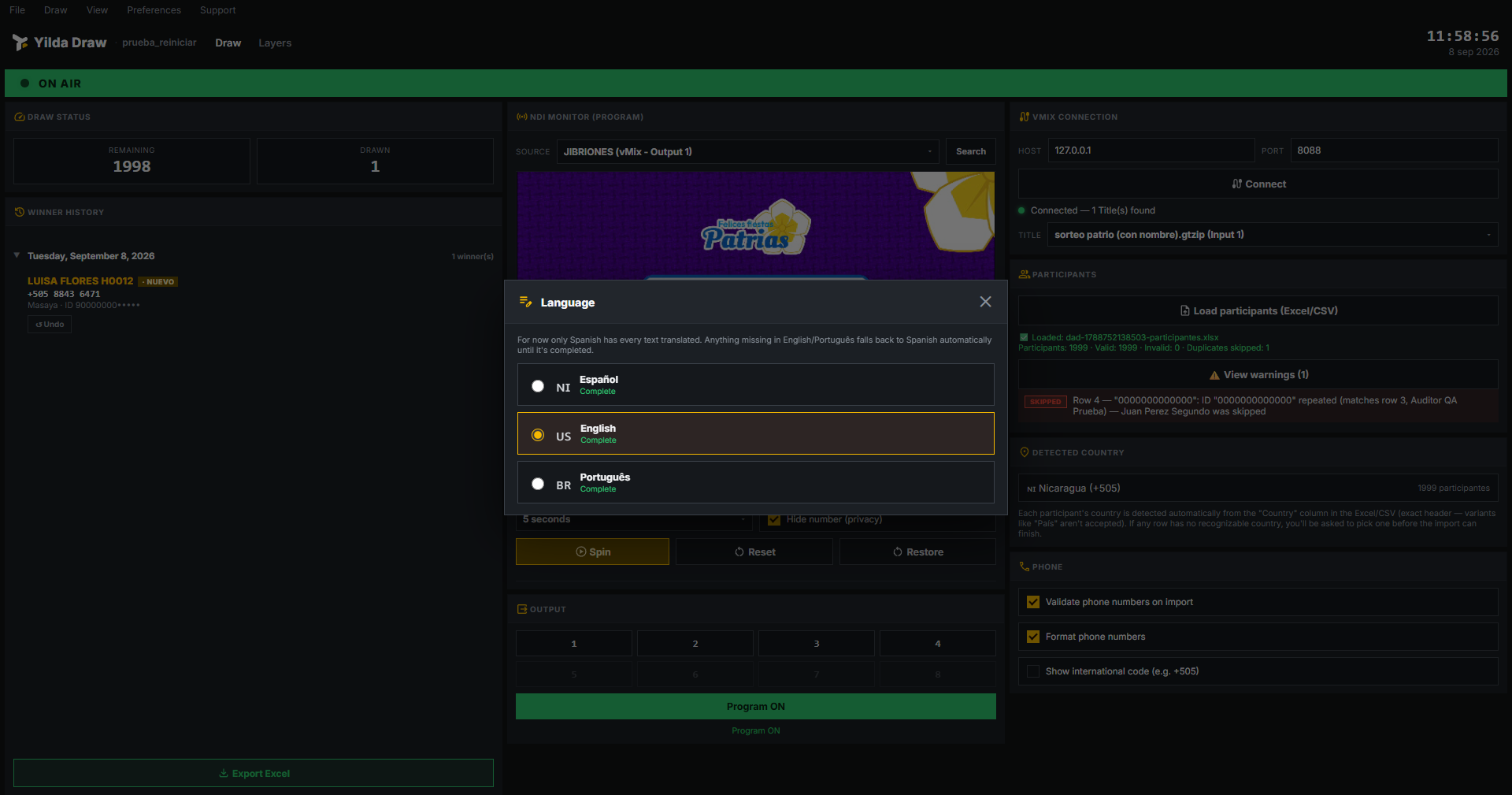
Changes the whole interface's language immediately, without restarting the application.
Support menu
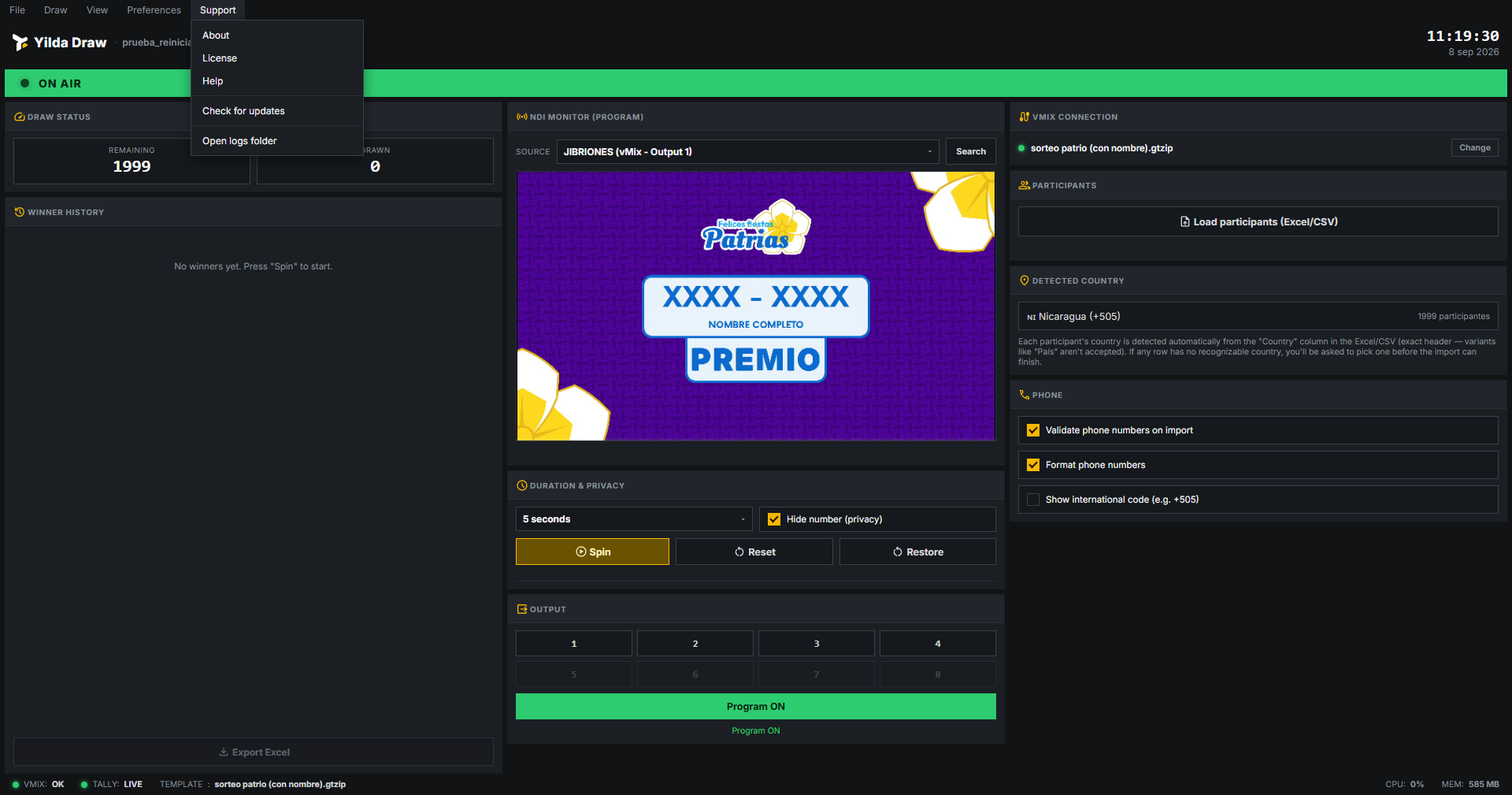
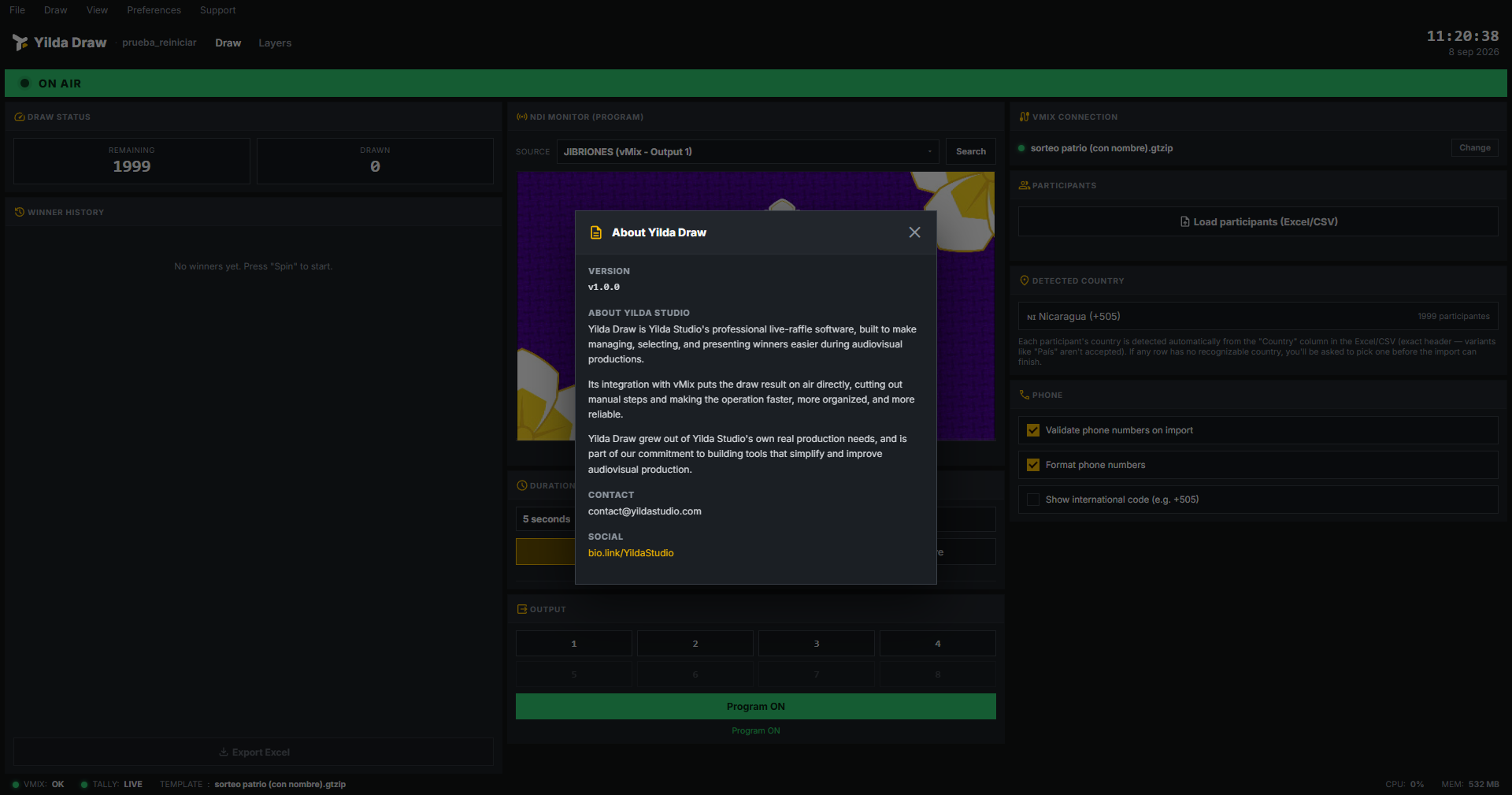
About
License
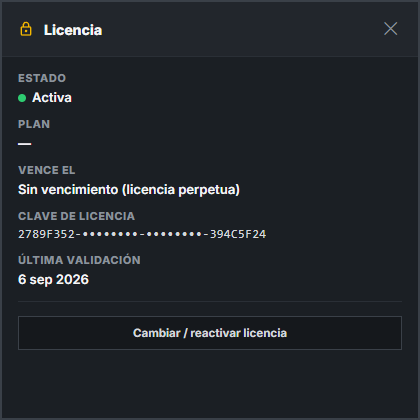
Shows status, plan, expiration date, key (partially hidden), and last validation. The "Change / reactivate license" button lets you enter a different key.
Help, updates, and logs
Help opens the support page in the browser. Check for updates looks for a newer version. Open logs folder opens the internal log folder — the first place to check when there's an issue.
vMix connection
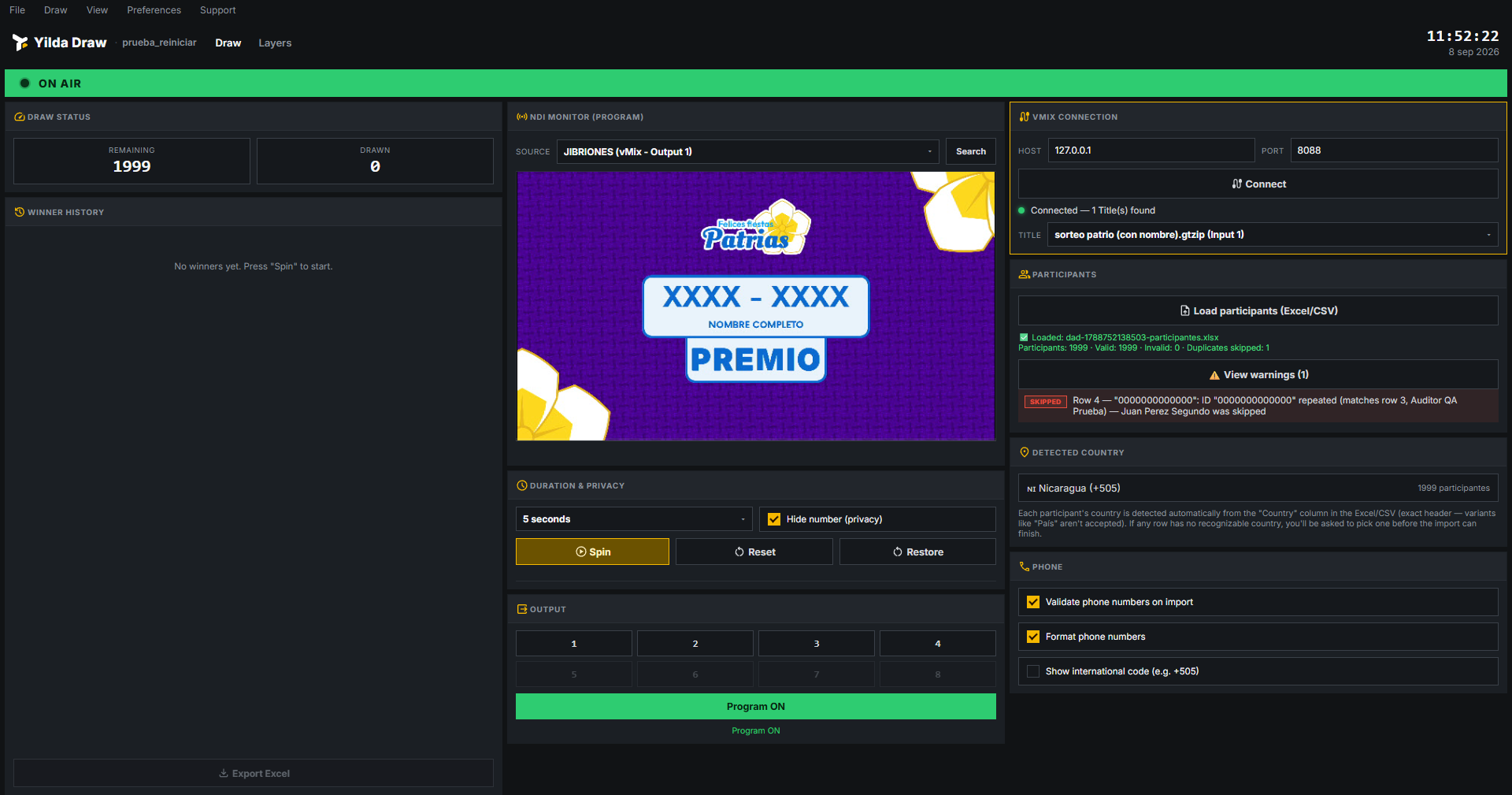
- Same computer as vMix: leave Host
127.0.0.1and Port8088. - Different computer: enter the IP of the computer running vMix and its port (Settings → Web Controller / API in vMix).
Press Connect and then select the Title (.gtzip) to use — only designs compatible with Yilda Draw appear.
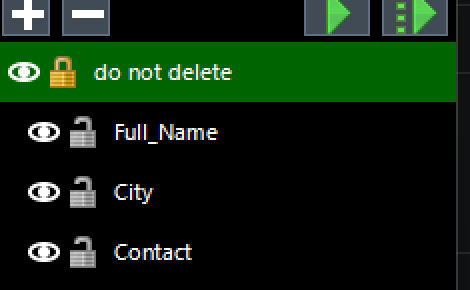
Required fields in the design (.gtzip)
For Yilda Draw to recognize a Title as compatible, the design must have exactly these three text fields, named exactly like this (it's not enough for the name to just contain them):
Full_Name— the participant's name.City— city or location.Contact— phone number.
Loading participants
File format
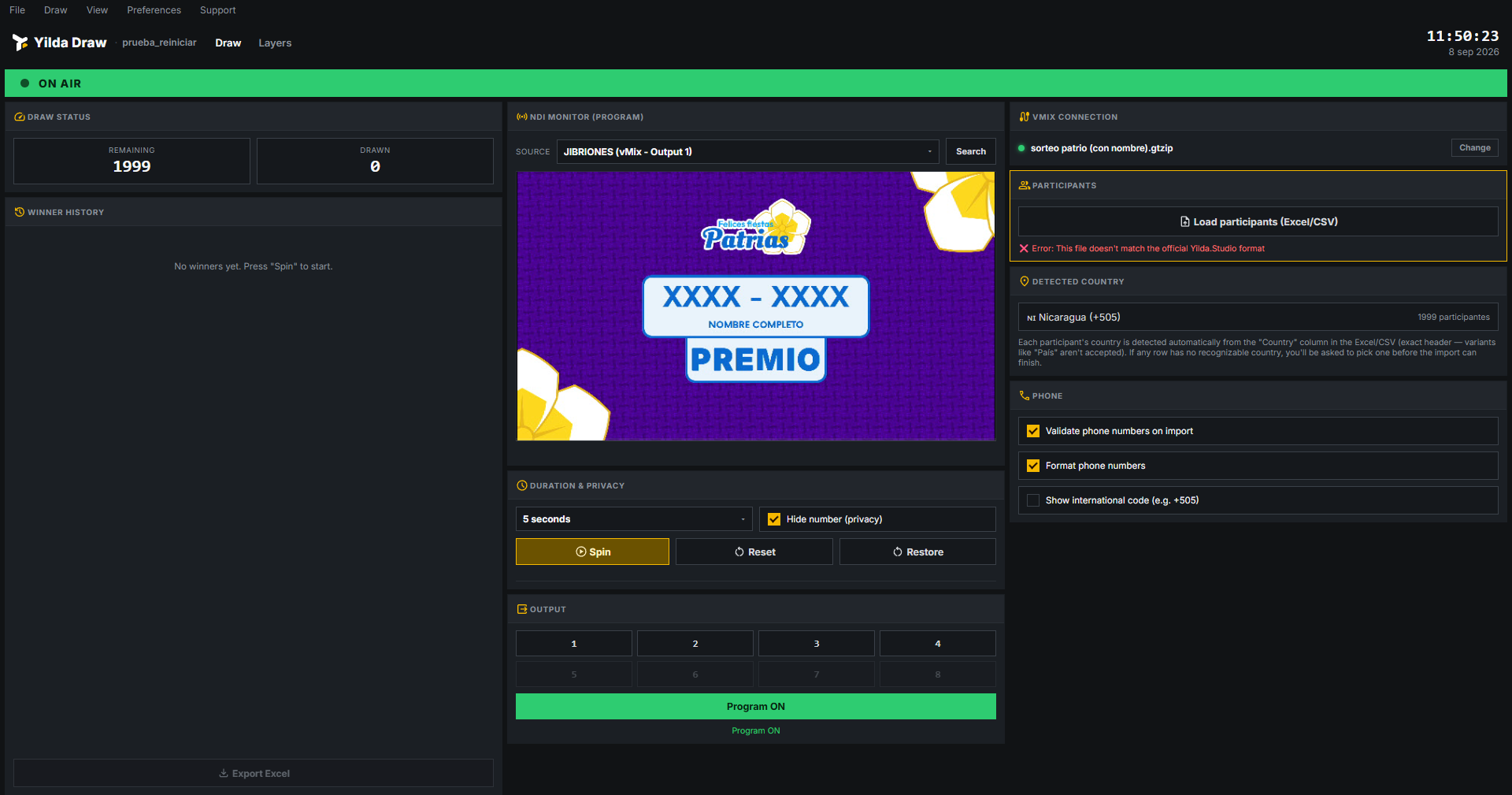
The Load participants (Excel/CSV) button requires columns that match the official Yilda Studio template exactly. If they don't match, the import is canceled without affecting the list already loaded:
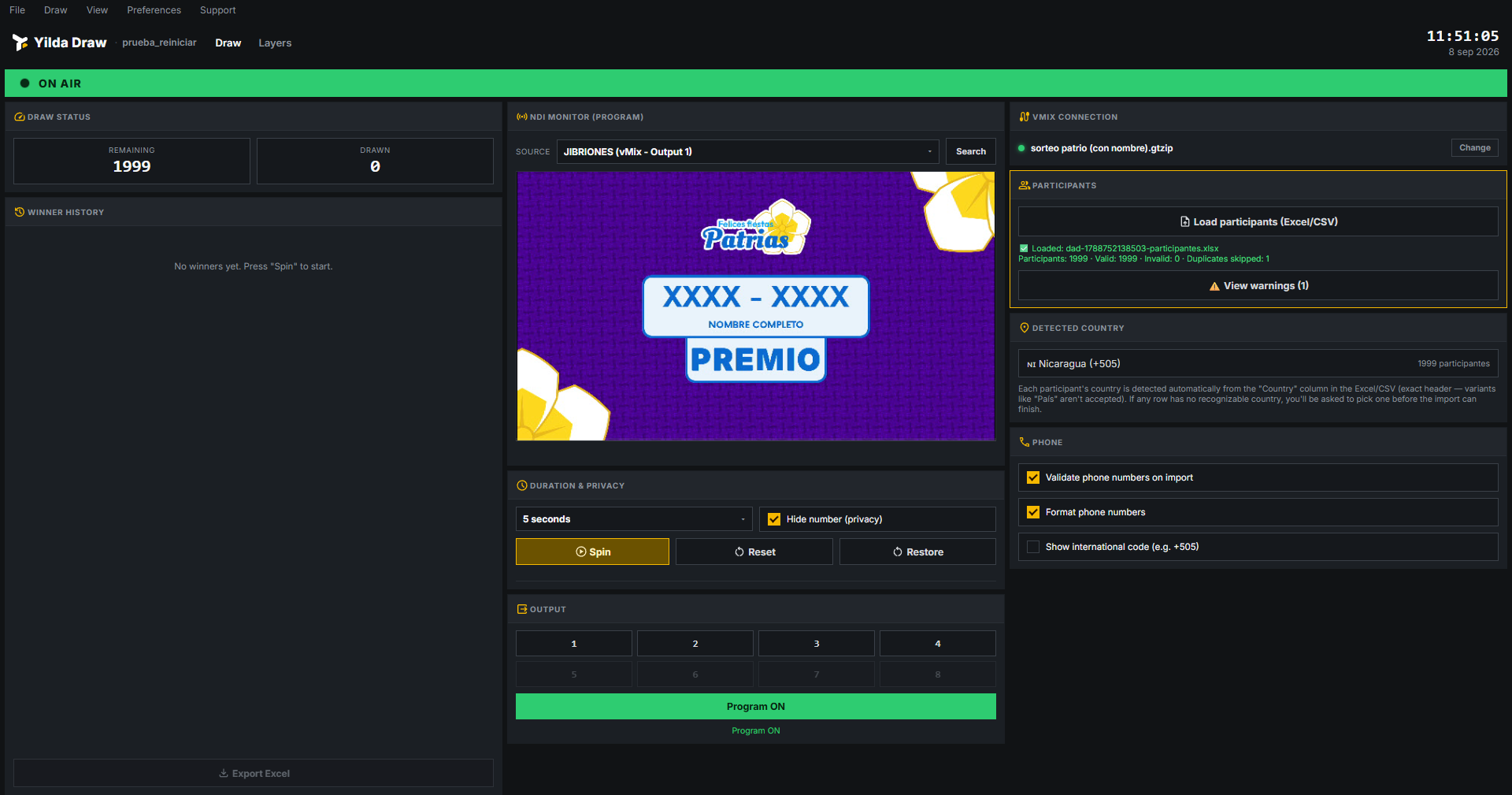
With a valid file, the summary is shown: total, valid, invalid, and skipped duplicate participants:
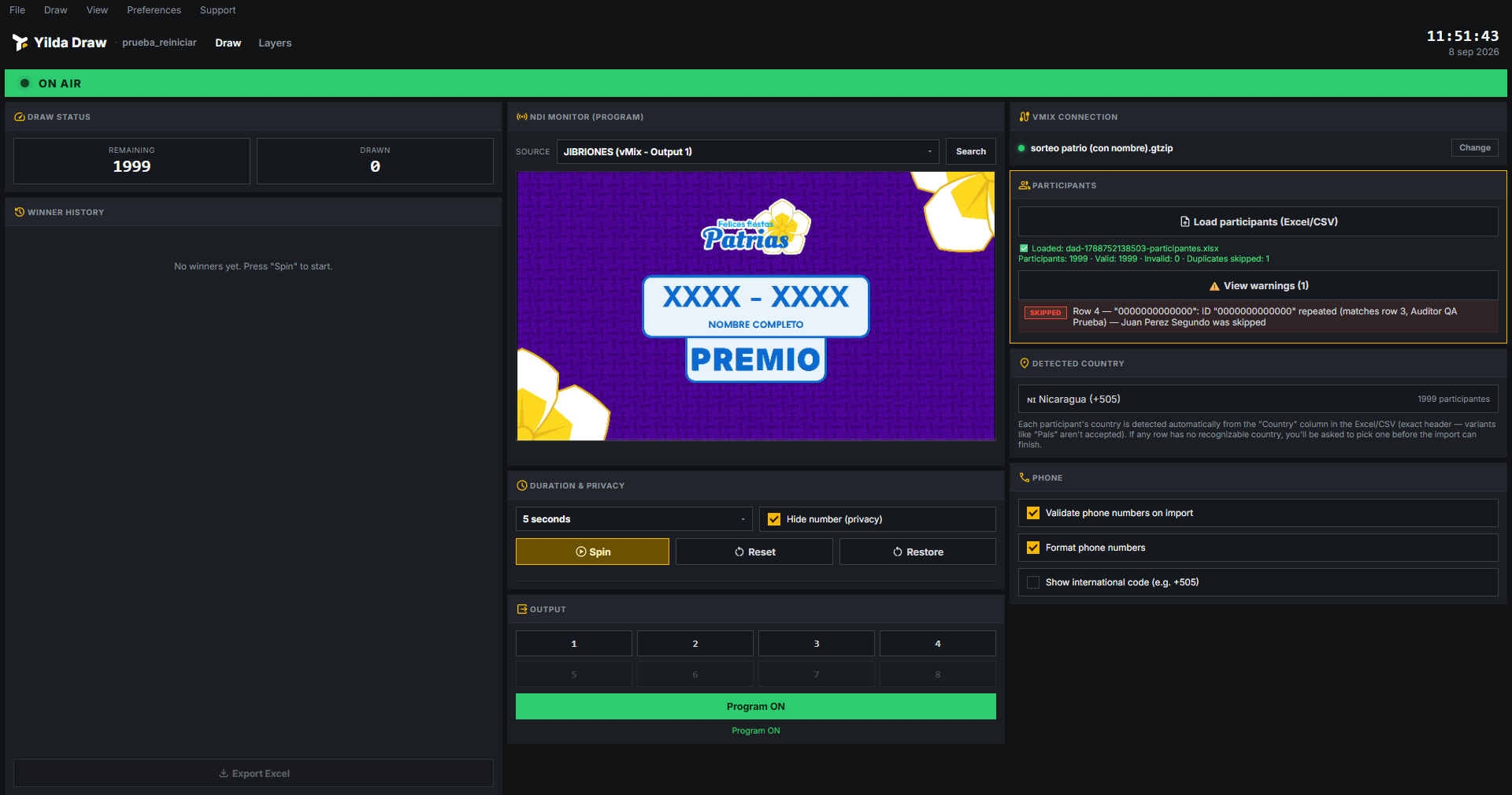
Duplicates and warnings
The View warnings (N) link expands the row-by-row detail of each warning:
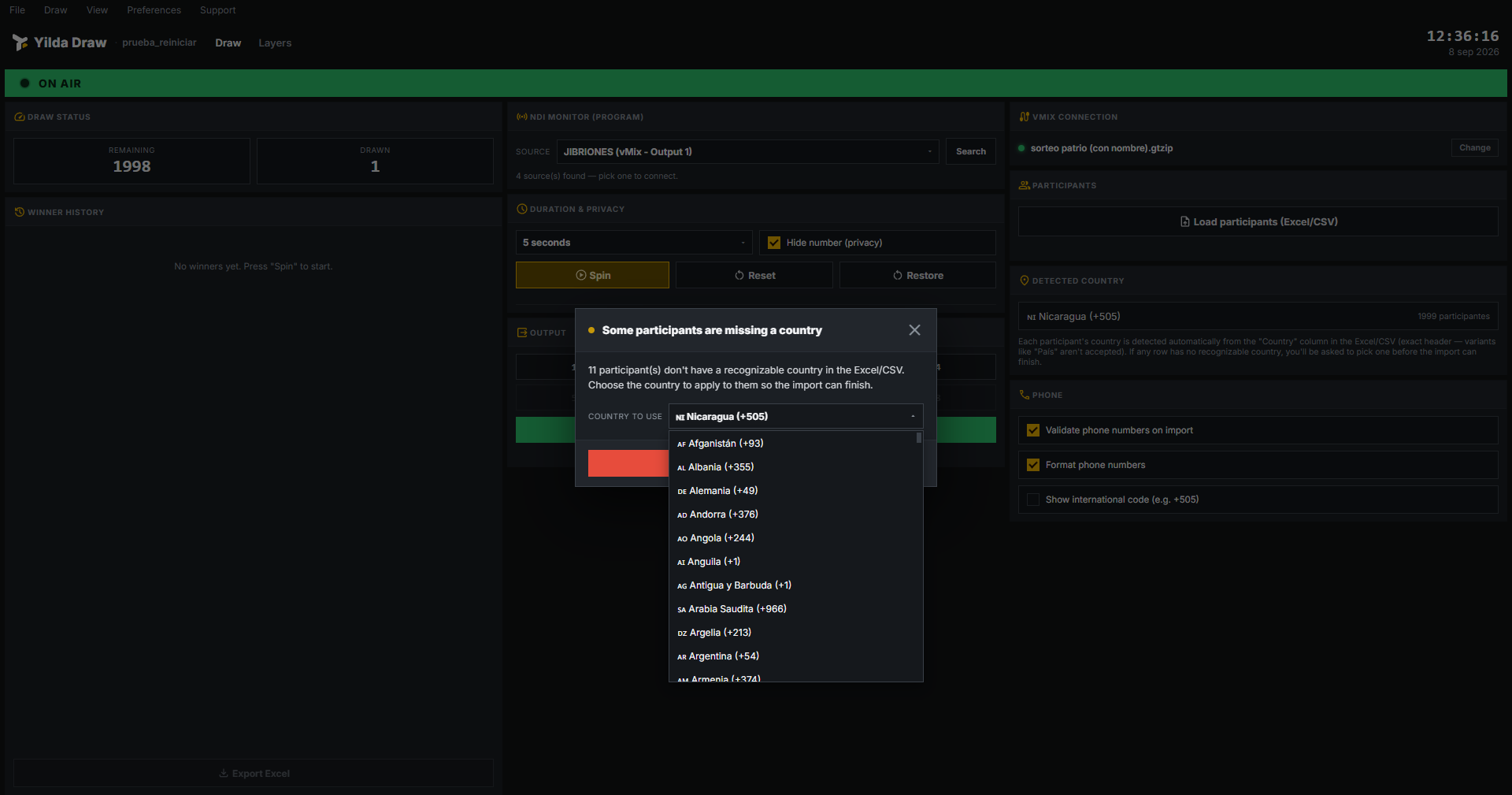
Detected country
The country is detected automatically from the "Country" column (exact header). If any row doesn't have a recognizable country, you're asked to choose one before finishing the import:
Phone settings
- Validate phone numbers on import: rejects numbers with an invalid format for the detected country.
- Format phone numbers: automatically normalizes the format on import.
- Show international code: adds the country code before the number on screen.
Running the draw (Spin)
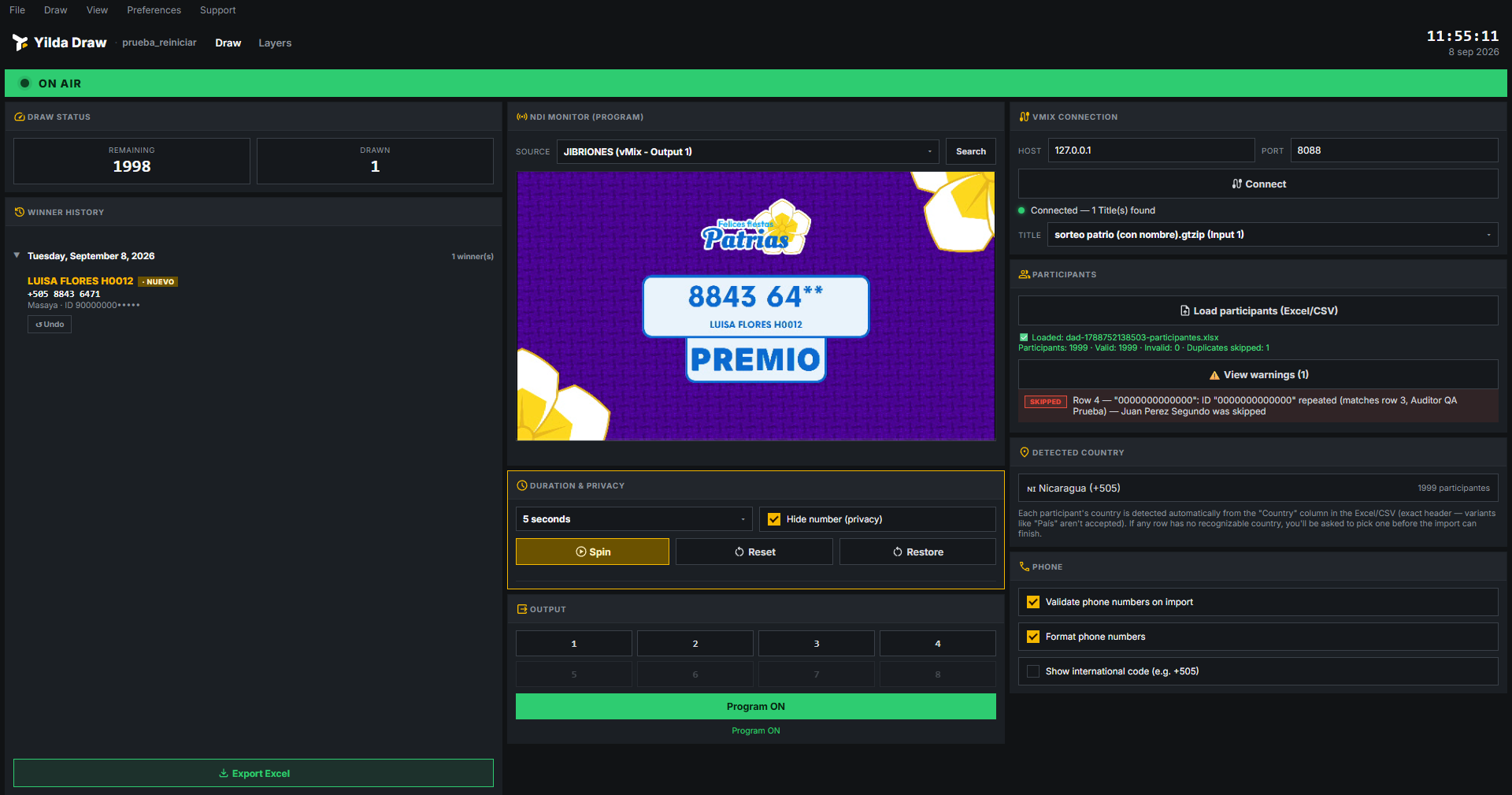
- Set the spin duration in Duration & Privacy.
- Turn on Hide number (privacy) to show the number partially hidden (e.g.
8843 64**). - Press Spin. The winner appears in the NDI monitor and is added to the history with a NEW tag.
Reset vs. Restore original values
Two buttons that are easy to confuse because both "clear the screen," but they do completely different things.
| Reset | Restore (restore original values) |
|---|---|
| Undoes today's draws: they become available again and disappear from the history. | Doesn't erase any of the day's progress — not participants, not history, not the session. |
| Winners from previous days in the profile stay excluded. | Only returns what's on screen to the design's original state. |
| To fix a mistake, undo test draws, or start a new day. | To clear the screen between draws, without losing the day's progress. |
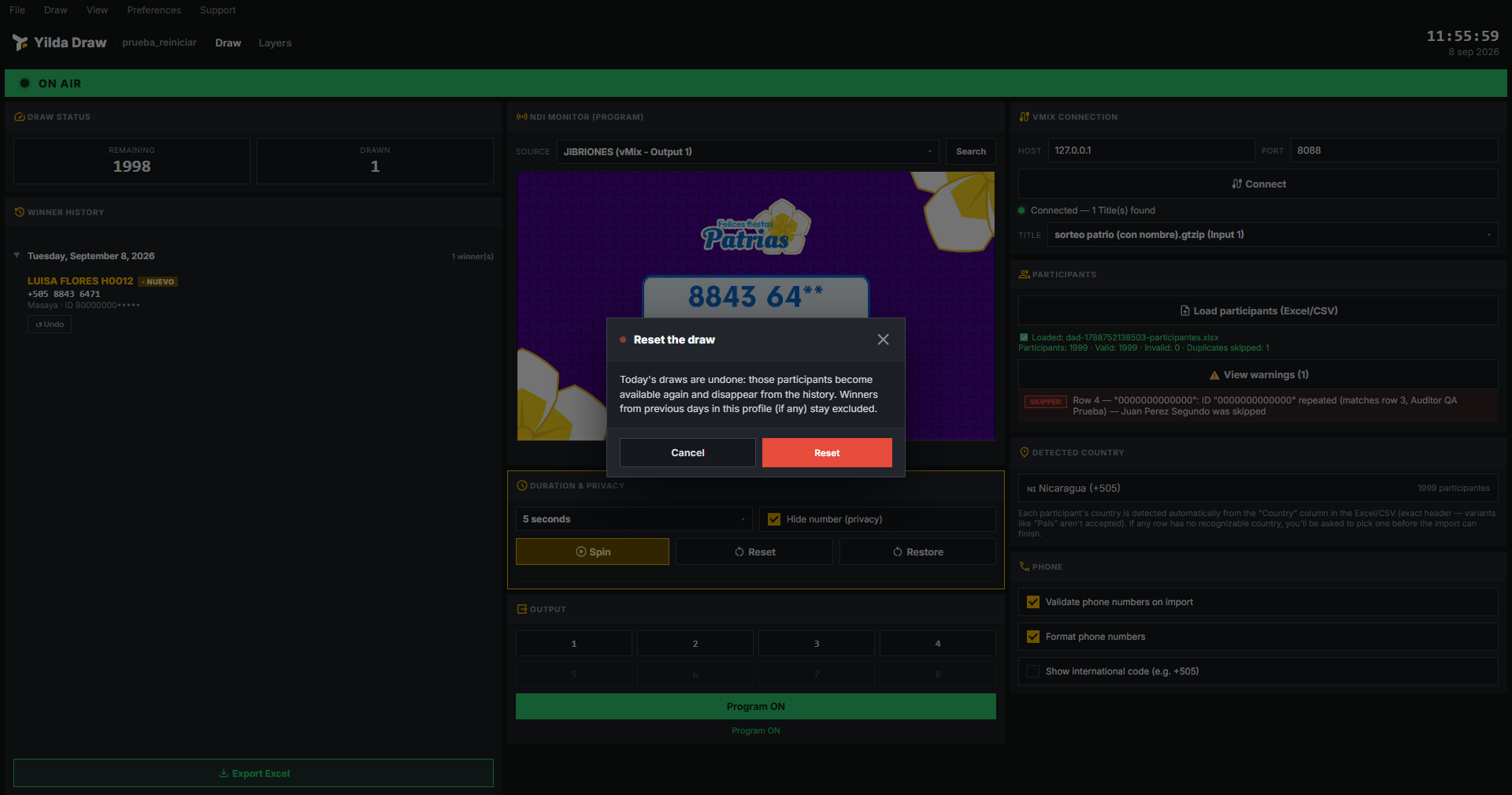
Reset always asks for confirmation. Restore doesn't, because it doesn't erase the day's progress:
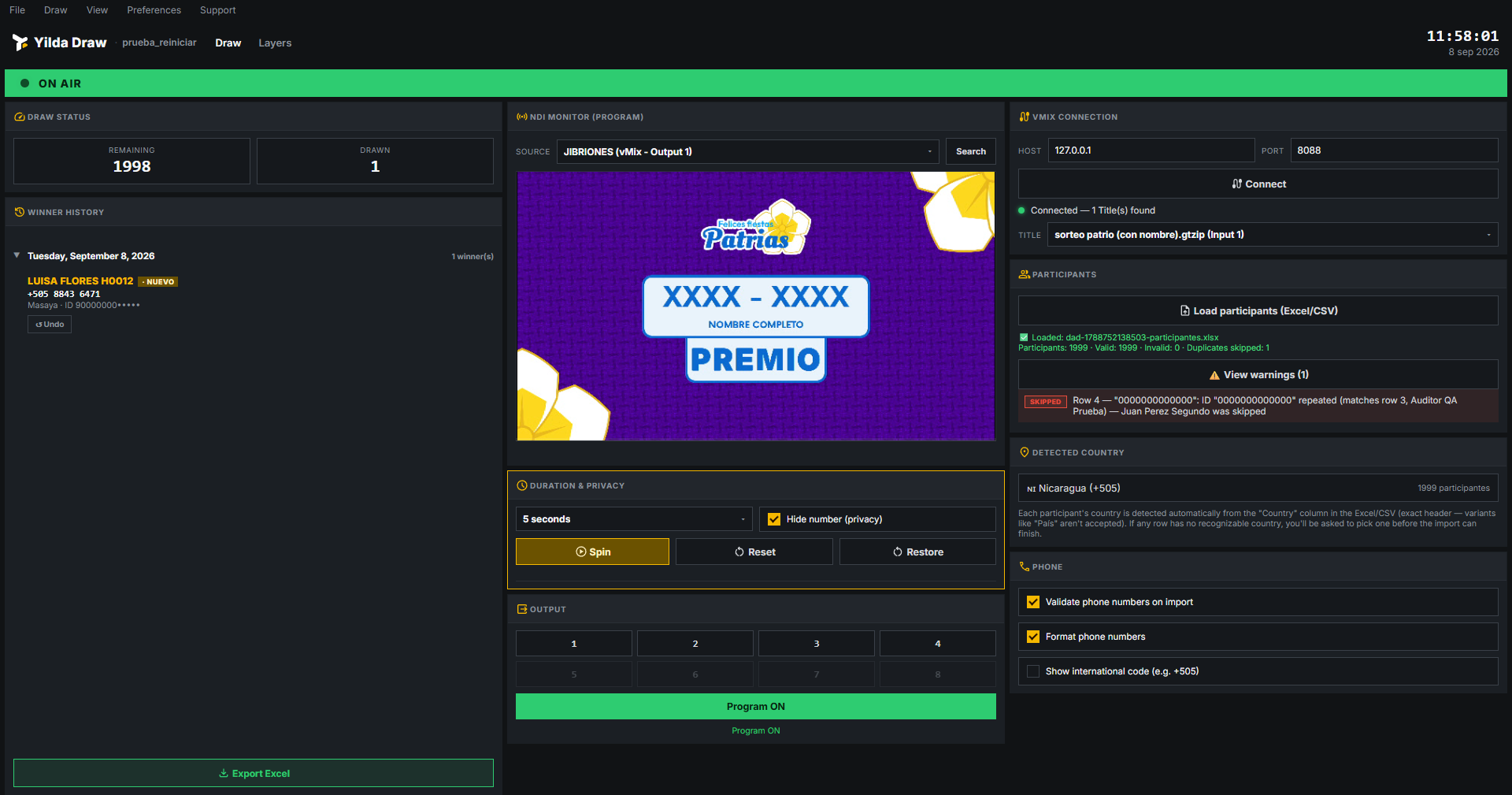
Winner history and Undo
The history groups winners by date — today expanded by default, previous days collapsed. The Undo button only appears next to the most recent winner of the current session.
The Export Excel button exports the active profile's full accumulated history to an Excel file.
Output: overlay channels and Program
The Output panel controls which vMix overlay channel (1–8) shows the result. The large button toggles Program ON / off, confirming the real state read from vMix.
Layers tab (Design Content)
Lets you edit the design content (.gtzip) loaded in vMix without leaving Yilda Draw.
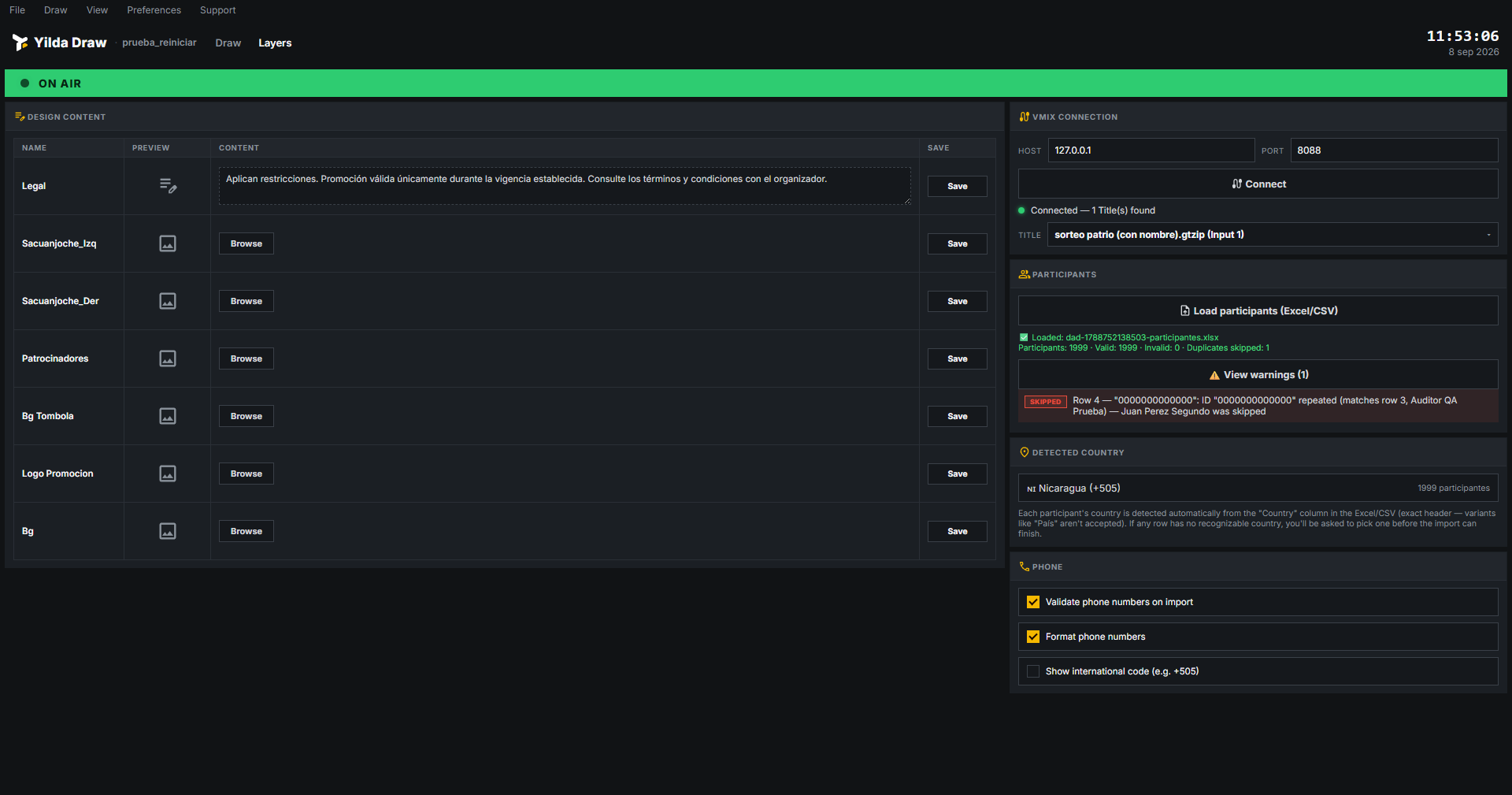
- Text fields: edited by typing in the box and pressing Save.
- Image fields: updated with Browse and then Save.
The ↺ Restore original values button returns these fields to their factory value, reading it directly from the .gtzip file.